Setting Up
Get Started on DeepIntShield Cloud
Section titled “Get Started on DeepIntShield Cloud”DeepIntShield is a fully hosted cloud gateway. There’s nothing to install - sign up, create a virtual key, and point your SDK or base URL at https://app.deepintshield.com. Connect to any AI provider (OpenAI, Anthropic, Bedrock, and more) through a unified API that follows OpenAI request/response format.
1. Sign Up
Section titled “1. Sign Up”Create your account at https://app.deepintshield.com. You get instant access to the hosted gateway and Web UI - no servers, containers, or local setup required.
2. Create a Virtual Key
Section titled “2. Create a Virtual Key”In the Web UI, add your AI provider API keys and create a virtual key to authenticate your requests. Virtual keys (prefixed sk-bf-) give you a single credential that works across every provider, with built-in governance, rate limiting, and usage tracking.
🖥️ The Web UI provides:
- Visual provider setup - Add API keys with clicks, not code
- Real-time configuration - Changes apply immediately
- Live monitoring - Request logs, metrics, and analytics
- Governance management - Virtual keys, usage budgets, and more
3. Point Your Base URL at the Cloud
Section titled “3. Point Your Base URL at the Cloud”Set your SDK base_url (or OPENAI_BASE_URL / ANTHROPIC_BASE_URL) to https://app.deepintshield.com. The same OpenAI-compatible request/response format you already use works unchanged - just swap the host.
4. Test Your First API Call
Section titled “4. Test Your First API Call”curl -X POST https://app.deepintshield.com/v1/chat/completions \ -H "Content-Type: application/json" \ -H "x-bf-vk: sk-bf-your-virtual-key" \ -d '{ "model": "openai/gpt-4o-mini", "messages": [{"role": "user", "content": "Hello, DeepIntShield!"}] }'🎉 That’s it! DeepIntShield is routing your AI requests through the hosted cloud gateway.
What You Get
Section titled “What You Get”- Zero-infrastructure start: nothing to install or operate - configure everything through the Web UI
- OpenAI-compatible API: send the same request/response format you already use
- One endpoint for every provider:
/v1/chat/completionsworks with OpenAI, Anthropic, Bedrock, and more - Model selection by name: prefix the model with the provider, e.g.
openai/gpt-4o-mini - Built-in authentication, rate limiting, and routing with no extra wiring
Self-Host (Enterprise)
Section titled “Self-Host (Enterprise)”Prefer to run DeepIntShield inside your own VPC or on-premise data plane? The Enterprise / Self-Hosted option lets you deploy the gateway on your own infrastructure while the control plane experience remains the same. See the Deployment Guides to get started.
How DeepIntShield Cloud Is Configured
Section titled “How DeepIntShield Cloud Is Configured”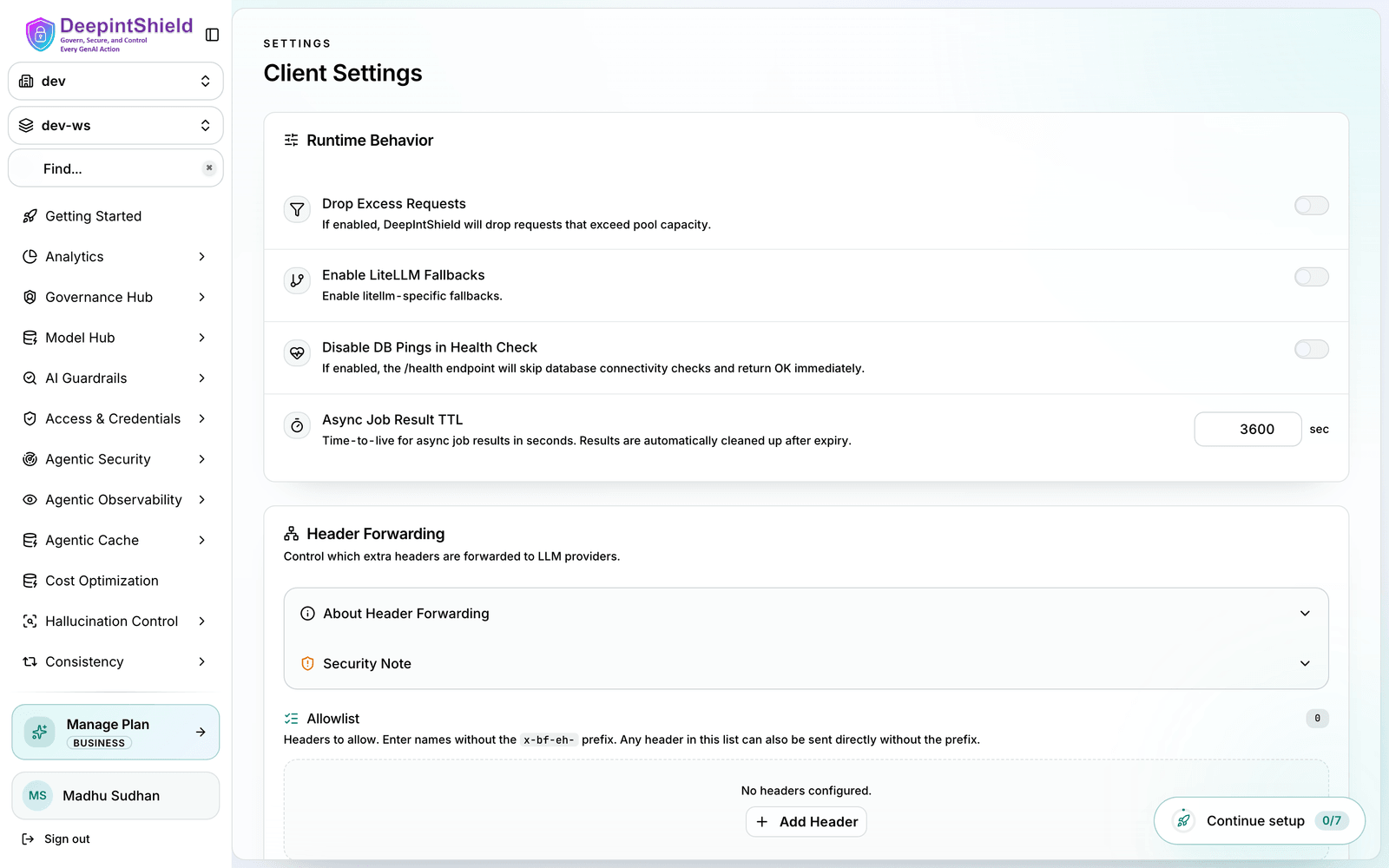
On DeepIntShield Cloud, everything is configured through the Web UI - there is no local file to edit. The hosted control plane persists all configuration for you and applies changes in real time.
Web UI Configuration
Section titled “Web UI Configuration”Sign in at https://app.deepintshield.com and configure everything visually:
- UI is enabled by default - configure everything in real time through the web interface
- Persistent storage - all changes save to the hosted control plane immediately, with no restart required
- Live monitoring - request logs, metrics, and analytics are available right in the dashboard
All provider, virtual-key, and MCP configuration is managed here - add providers and keys, create virtual keys, and connect MCP clients directly from the dashboard.
The Three Stores Behind Your Workspace:
- Config Store: holds provider configs, API keys, and MCP settings - powers the UI
- Logs Store: holds the request logs shown in the UI - optional, can be disabled
- Vector Store: backs semantic caching - optional, can be disabled
On DeepIntShield Cloud these stores are fully managed for you. If you self-host (Enterprise), you provision them yourself - see the Deployment Guides.
Next Steps
Section titled “Next Steps”Now that you have DeepIntShield running, explore these focused guides:
Essential Topics
Section titled “Essential Topics”- Provider Configuration - Multiple providers, automatic failovers & load balancing
- Integrations - Drop-in replacements for OpenAI, Anthropic, and GenAI SDKs
- Multimodal Support - Support for text, images, audio, and streaming, all behind a common interface.
Advanced Topics
Section titled “Advanced Topics”- Tracing - Logging requests for monitoring and debugging
- MCP Tools - Enable AI models to use external tools (filesystem, web search, databases)
- Governance - Usage tracking, rate limiting, and cost control
- Deployment - Cloud, Enterprise VPC, and self-hosted options
Happy building with DeepIntShield! 🚀