
Tool Execution
Learn how to execute tools from connected MCP servers
DeepIntShield can connect to any MCP-compatible server to discover and execute tools. Each connection is called an MCP Client in DeepIntShield terminology.
DeepIntShield supports three connection protocols, each with different authentication options:
| Type | Description | Best For | Auth Support |
|---|---|---|---|
| STDIO | Spawns a subprocess and communicates via stdin/stdout | Local tools, CLI utilities, scripts | None |
| HTTP | Sends requests to an HTTP endpoint | Remote APIs, microservices, cloud functions | Headers, OAuth 2.0 |
| SSE | Server-Sent Events for persistent connections | Real-time data, streaming tools | Headers, OAuth 2.0 |
STDIO connections launch external processes and communicate via standard input/output. Best for local tools and scripts.
{ "name": "filesystem", "connection_type": "stdio", "stdio_config": { "command": "npx", "args": ["-y", "@anthropic/mcp-filesystem"], "envs": ["HOME", "PATH"] }, "tools_to_execute": ["*"]}Use Cases:
HTTP connections communicate with MCP servers via HTTP requests. Ideal for remote services and microservices.
HTTP connections support two authentication methods:
Use static headers for API keys and custom authentication tokens:
{ "name": "web-search", "connection_type": "http", "connection_string": "https://mcp-server.example.com/mcp", "auth_type": "headers", "headers": { "Authorization": "Bearer your-api-key", "X-Custom-Header": "value" }, "tools_to_execute": ["*"]}Use Cases:
Use OAuth 2.0 for secure, user-based authentication with automatic token refresh:
{ "name": "web-search", "connection_type": "http", "connection_string": "https://mcp-server.example.com/mcp", "auth_type": "oauth", "oauth_config": { "client_id": "your-client-id", "client_secret": "your-client-secret", "authorize_url": "https://auth.example.com/authorize", "token_url": "https://auth.example.com/token", "scopes": ["read", "write"] }, "tools_to_execute": ["*"]}Features:
→ Learn more about OAuth authentication →
Use Cases:
Overall HTTP Use Cases:
Server-Sent Events (SSE) connections provide real-time, persistent connections to MCP servers. Like HTTP connections, SSE supports both header-based and OAuth authentication.
{ "name": "live-data", "connection_type": "sse", "connection_string": "https://stream.example.com/mcp/sse", "auth_type": "headers", "headers": { "Authorization": "Bearer your-api-key" }, "tools_to_execute": ["*"]}{ "name": "live-data", "connection_type": "sse", "connection_string": "https://stream.example.com/mcp/sse", "auth_type": "oauth", "oauth_config": { "client_id": "your-client-id", "authorize_url": "https://auth.example.com/authorize", "token_url": "https://auth.example.com/token", "scopes": ["stream:read"] }, "tools_to_execute": ["*"]}Use Cases:
→ Learn more about OAuth authentication →
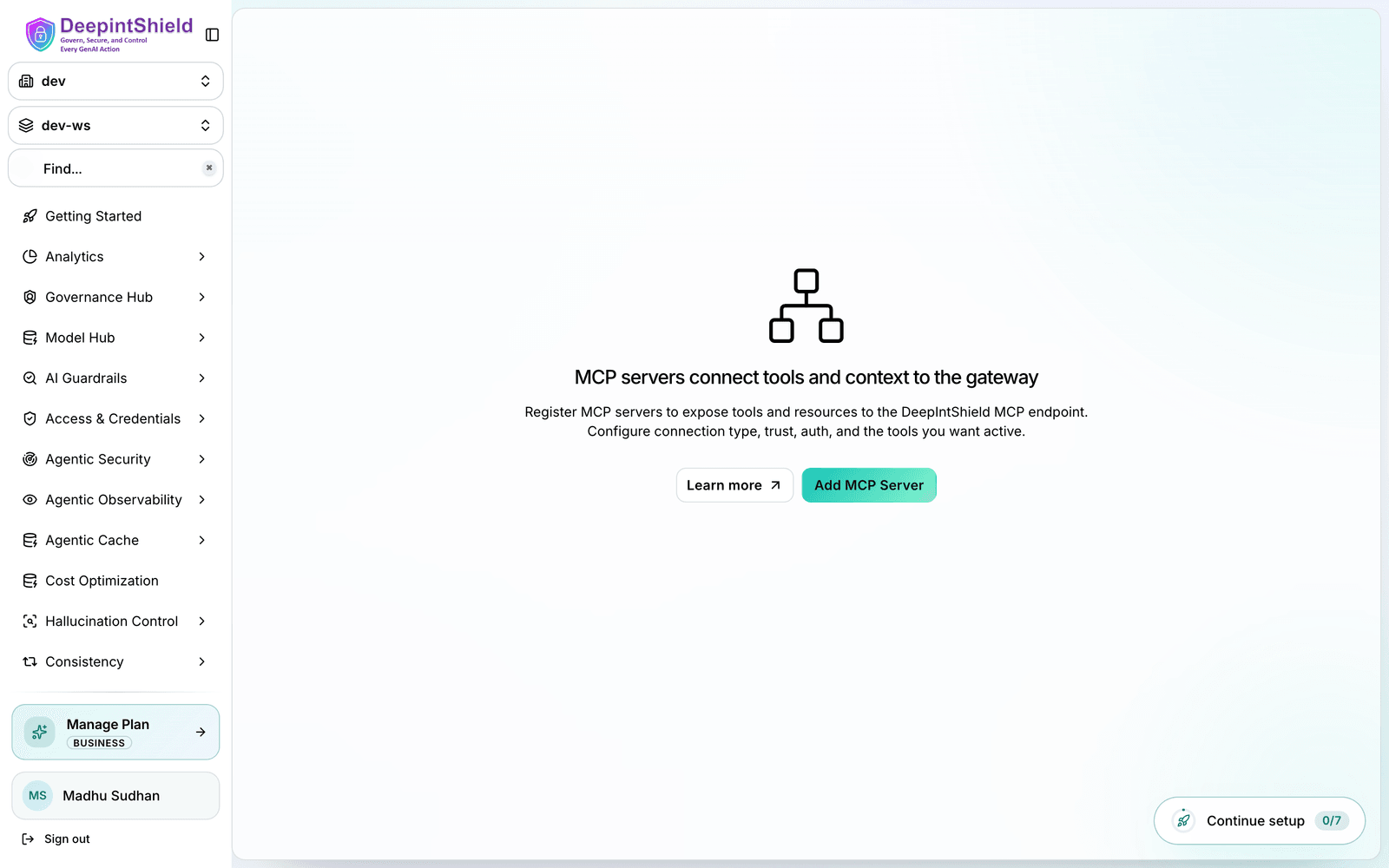
Click New MCP Server button to open the creation form
Fill in the connection details:
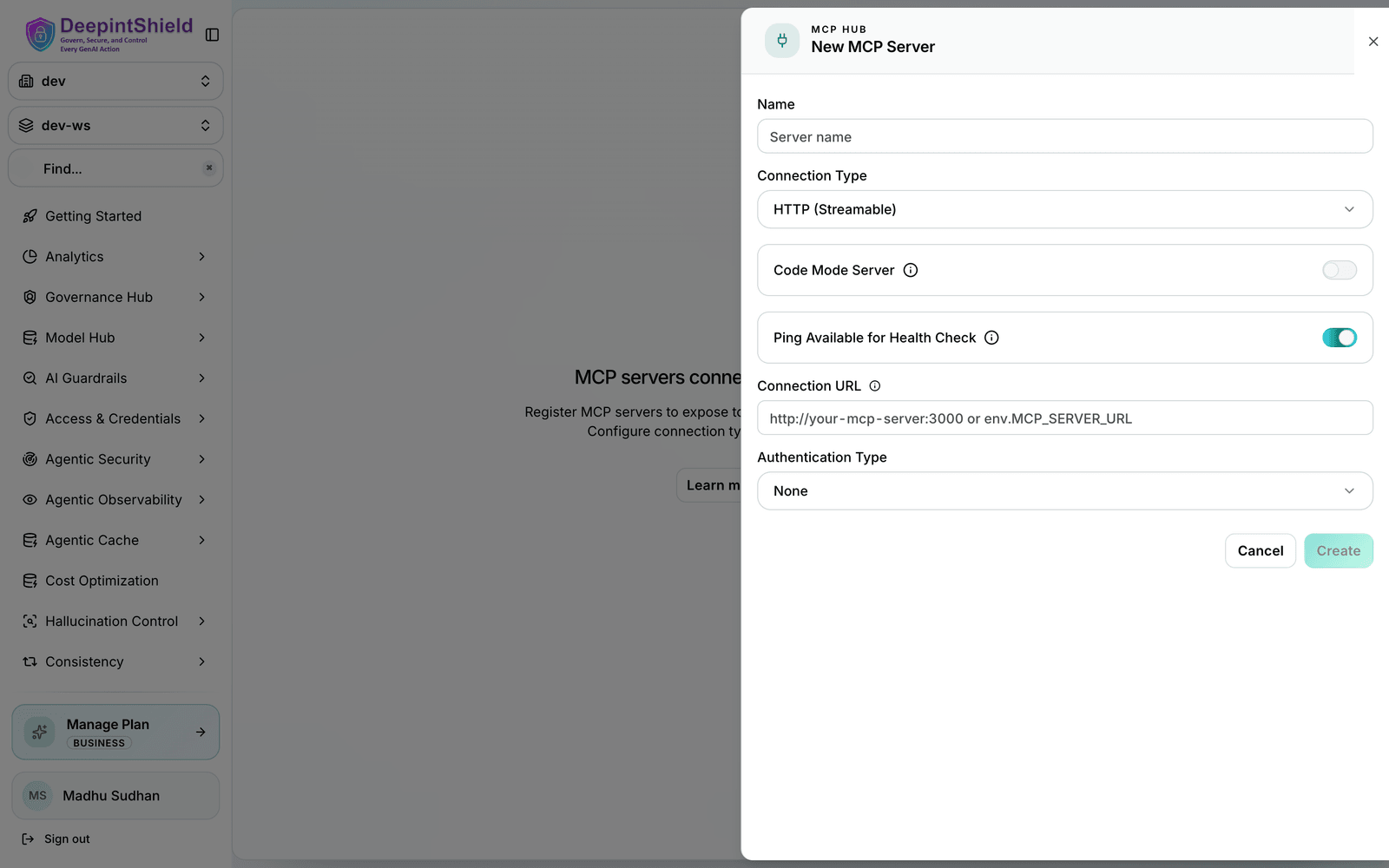
Fields:
Once connected, click on any client row to open the configuration sheet:
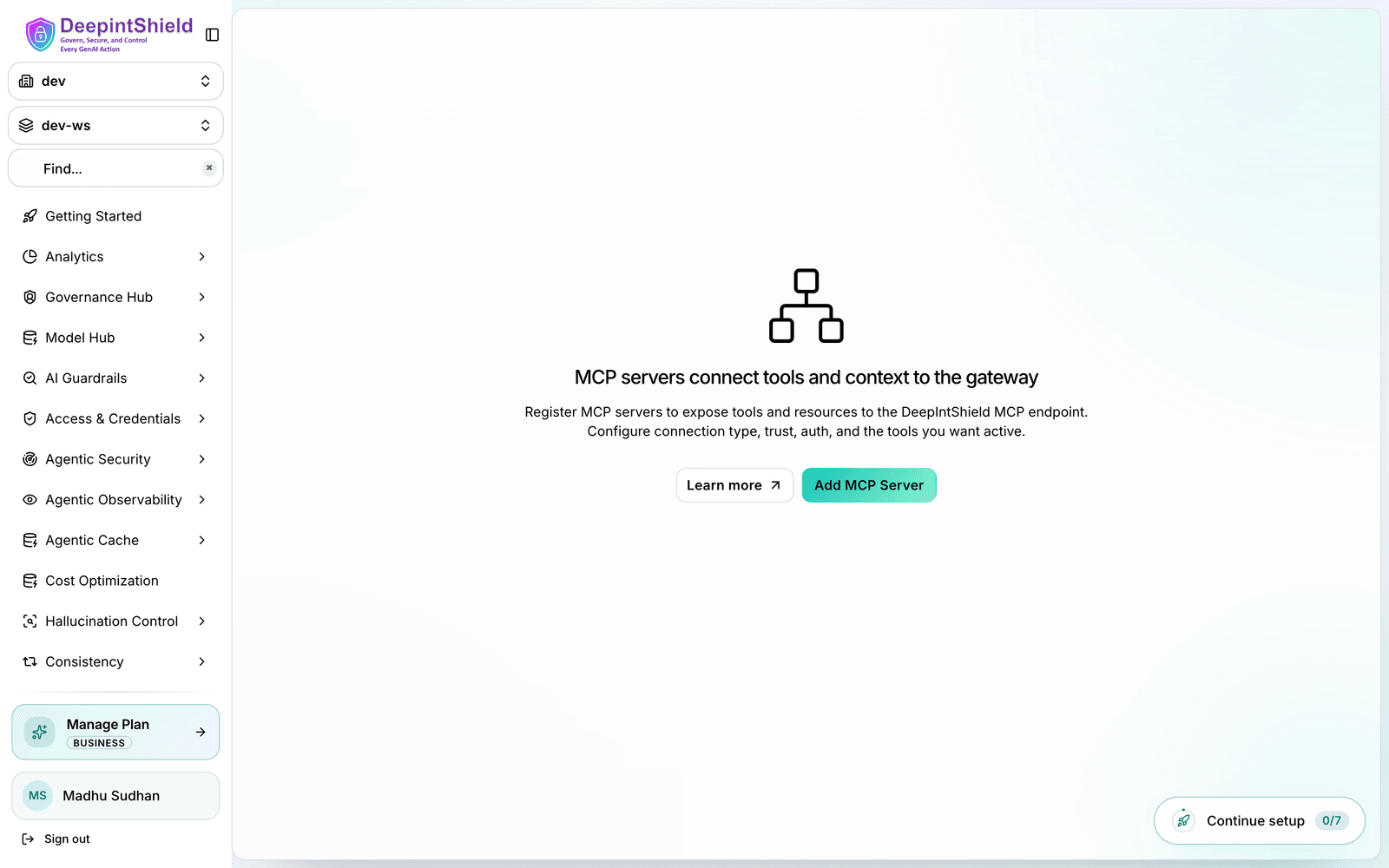
Here you can:
tools_to_executeControls which tools from the client are available:
| Value | Behavior |
|---|---|
["*"] | All tools from this client are included |
[] or omitted | No tools included (deny-by-default) |
["tool1", "tool2"] | Only specified tools are included |
tools_to_auto_execute (Agent Mode)Controls which tools can be automatically executed in Agent Mode:
| Value | Behavior |
|---|---|
["*"] | All tools are auto-executed |
[] or omitted | No tools are auto-executed (manual approval required) |
["tool1", "tool2"] | Only specified tools are auto-executed |
Example configuration:
{ "name": "filesystem", "connection_type": "stdio", "stdio_config": { "command": "npx", "args": ["-y", "@anthropic/mcp-filesystem"] }, "tools_to_execute": ["*"], "tools_to_auto_execute": ["read_file", "list_directory"]}Connection strings and headers that contain secrets (URLs with embedded API keys, bearer tokens, custom auth headers) are handled securely:
When you create or edit a client in the Web UI, enter the full connection URL or header value directly - DeepIntShield encrypts and redacts it for you.
| State | Description |
|---|---|
connected | Client is active and tools are available |
connecting | Client is establishing connection |
disconnected | Client lost connection but can be reconnected |
error | Client configuration or connection failed |
Manage connected clients from the MCP Gateway in the Web UI:
tools_to_execute, then click Save Changes.DeepIntShield automatically monitors MCP client health with periodic checks every 10 seconds by default.
By default, DeepIntShield uses the lightweight ping method for health checks. However, you can configure the health check method based on your MCP server’s capabilities:
| Method | When to Use | Overhead | Fallback |
|---|---|---|---|
| Ping (default) | Server supports MCP ping protocol | Minimal | Best for most servers |
| ListTools | Server doesn’t support ping, or you need heavier checks | Higher | More resource-intensive |
You can toggle the is_ping_available setting for each client from the Web UI:
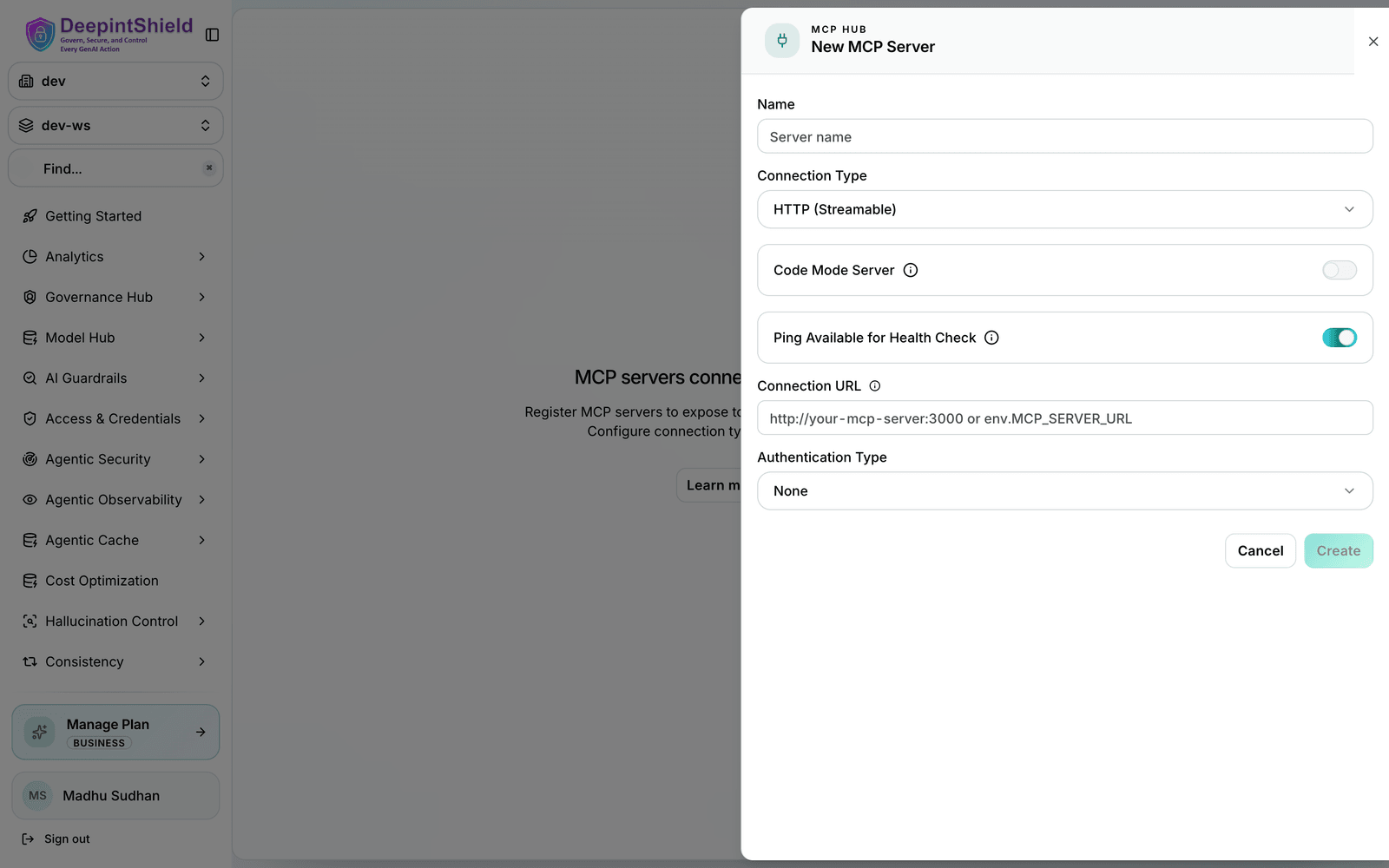
When a client disconnects:
disconnectedNote: Changing is_ping_available takes effect immediately without requiring a client reconnection.
A brief network hiccup won’t take your tools offline: DeepIntShield retries transient connection failures with exponential backoff (a few attempts over roughly 30 seconds) and automatically reconnects a client in the background once its health checks fail. You don’t need to configure anything for this to work.
What this means for you when debugging a connection:
connecting and recover without intervention.command not found: npx) are not retried. If a client lands in the error state immediately, check the connection URL, credentials/headers, and - for STDIO - that the command exists in the runtime environment.disconnected, its tools become unavailable, and DeepIntShield reconnects it in the background. Tools return automatically once it recovers.You can also trigger a reconnection yourself at any time from the MCP Gateway: open the client row and click Reconnect. Manual reconnection also uses the retry logic for robustness.
MCP client names have specific requirements:
Valid names: filesystem, web_search, myAPI, tool123
Invalid names: my-tools, web search, 123tools, datos-api